
If you've been saving restaurants and attractions in Google Maps for years, you probably have hundreds of places scattered across lists like "Want to go", "Tokyo trip", or "Best coffee". The problem: Google Maps isn't built for research. You can't search your notes, filter by category, or get a clear view of everything saved in one city.
This guide shows you how to export all your Google Maps saved places and import them into Travally, where they become searchable, enriched with ratings and hours, and actually organized.
What You'll Get
Travally turns your flat list of pins into a proper travel research tool. Here's what changes when you import:
- Rich data, automatically. Each place gets enriched with ratings, photos, opening hours, address, website, and phone number. No manual data entry.
- Browse and filter everything. Filter your places by type (restaurant, hotel, attraction), by completion status, by one or more tags, or just search across all your data with full-text search.
- Ask AI about your own bookmarks. Ask natural language questions like "best breakfast spots in my Tokyo list" and get answers grounded in what you've actually saved, not the whole internet.
- Map view with richer data. You still get a map with all your pins, just like Google Maps lists. But now you can browse, search, and Ask AI across all your lists combined.
- Tags that scale. Each imported list becomes a tag. You can add more tags yourself, and filter by multiple tags at once. A place that appears in three lists simply gets three tags.
- Purely additive. Your original Google Maps data isn't touched. This is a one-way copy.
Ratings
Star ratings from Google, TripAdvisor, and other review platforms.
Opening Hours
Current hours so you know when to visit.
Photos
A cover photo so you can visually scan your saved places.
Category
Automatically tagged as restaurant, hotel, attraction, etc.
Map Location
Pinned on a map so you can see everything geographically.
Your Notes
Any notes you added in Google Maps are preserved.
Step 1: Export Your Google Maps Data with Google Takeout
Google Takeout is Google's official data export tool. It lets you download your saved places as CSV files.
- Go to takeout.google.com (sign in if prompted)
- Click "Deselect all" at the top. This unchecks everything so you don't download gigabytes of Gmail and Drive data.
- Scroll down and find "Saved". Check the box next to it. This is your Google Maps saved places.
- Click "Next step" at the bottom of the page
- Leave the delivery settings as-is (email link, .zip format is fine) and click "Create export"
- Wait for the email. This usually takes a few minutes, but can take up to a day for large accounts.
- Click the download link in the email and save the
.zipfile - Unzip the file on your computer
Inside the unzipped folder, you'll find a Takeout/Saved/ directory. This is where your lists live.
Step 2: Find Your CSV Files
Inside Takeout/Saved/, you'll see one CSV file for each of your saved lists. For example:
Takeout/
  Saved/
    Favorites.csv
    Want to go.csv
    Tokyo trip.csv
    Best coffee.csv
Each file contains the places from that list: the name, your notes (if any), and the URL.
Note: Google exports each list separately. If you have a dozen lists, you'll import them one at a time into Travally.
Step 3: Import Into Travally
Ready to import your saved places?
Sign in to Travally and follow the steps below to import your Google Maps lists.
Sign in to TravallyOnce you're signed in to Travally:
- Click the "+" button or the "Add" button to open the add panel
- Switch to the "Import" tab
- Click "Choose file" and select one of your CSV files from the
Takeout/Saved/folder - Click "Import". Travally reads the file and queues each place for enrichment.
Repeat for each list you want to import. You'll get a preview showing how many places were found before you confirm.
What Happens Next
After import, Travally automatically enriches each place in the background. For each location, it pulls ratings, photos, hours, address, contact info, and a map pin. Enrichment happens over the next few minutes. You'll see places fill in as they're processed.
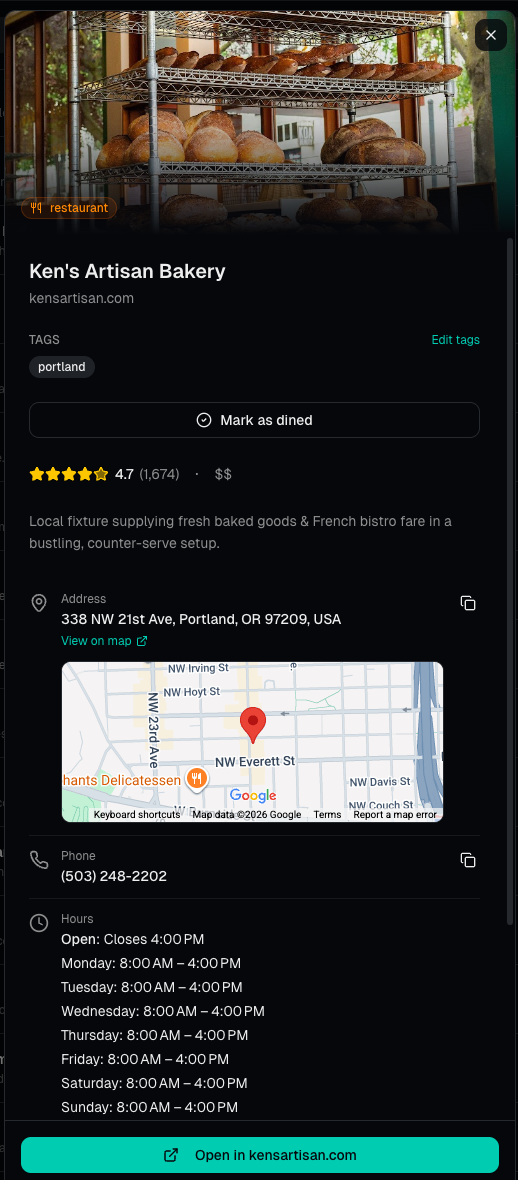
Each saved place becomes a rich card with everything you need at a glance.
Your Lists Become Tags
When you import a CSV file named Tokyo trip.csv, Travally uses the filename as a tag. So all your Tokyo places get the tag Tokyo trip automatically.
Places can have multiple tags. If a restaurant appears in both your "Tokyo trip" list and your "Best coffee" list, it gets both tags when you import both files. You can also add your own tags on top of those.
This makes it easy to:
- Filter by tag to see just your Tokyo places
- Combine tags to find the overlap, like coffee shops that are also on your Tokyo trip list
- Mix with other filters like type (restaurants only) or completion status
- Ask AI questions like "What are the best restaurants on my Tokyo trip list?"
Frequently Asked Questions
What if a place doesn't enrich? Some places may not have enough data online for Travally to enrich automatically. You can still save the URL and add notes manually.
Can I import all my lists at once? Currently, you import one CSV at a time. For most people, this takes just a few minutes to do for all their lists.
What happens to duplicates? If you import the same URL twice, Travally detects the duplicate and adds the new list's tag to the existing bookmark rather than creating a second entry.
Will my Google Maps notes be saved? Yes. Any note you added to a place in Google Maps will be imported as a note in Travally.
Do I need to keep using Google Takeout? Once your places are in Travally, you can add new ones by pasting any URL directly. No need to go through Takeout again.